MULTIPLE RAW PROCESSING POWER
Adobe CS2's Bridge
-- A Suite Cockpit
 By MIKE PASINI
Editor
The Imaging Resource Digital Photography Newsletter
Review Date: July 2005
Adobe Bridge is a new application in the Creative Suite that borrows features from your operating system, Web browser organizer and image editor to make your workflow more efficient. This first incarnation, included with the CS2 versions of Photoshop, InDesign, Illustrator or GoLive, proves its mettle and promises even more. But it's a tough bird to get a handle on.
|
See Also: |
Our review of Creative Suite 2 starts with this focus on Bridge, but includes a few notes about the Suite in general. The Suite itself is available in two configurations: CS2 Premium and CS2 Standard (which does not include GoLive or Acrobat). You need only one Adobe application to qualify for upgrade pricing on the entire Suite. For example, you can upgrade to CS2 Premium from Photoshop for $739 or from CS1 for $439. The full version runs $1,119. You can upgrade to CS2 Standard from Photoshop for $489, from CS1 for $350 or get the full version for $839.
Some Bridge features require the Premium edition. They include 1) Bridge Center to view and access recent files and folders, plus RSS feeds and software tips and 2) centralized color settings to set color preferences throughout the Suite from a central control panel for more consistent color.
The feature list is impressive but confusing. We'll follow our tour of Bridge's main features with a discussion of imaging workflow. Much of what you have done in Photoshop, you can now do in Bridge. And that leaves Photoshop free to do what it does best while Bridge sets the table in the background.
SYSTEM REQUIREMENTS | Back to Contents
To run the Premium edition on either platform requires 384-MB RAM to run a creative application with Bridge and Version Cue (512-MB to 1-GB recommended to run more than one), 4-GB hard-disk space to install all applications, 1024x768 monitor resolution with 16-bit video card (24-bit recommended), a CD-ROM drive, Internet connection required for product activation (broadband for Adobe Stock Photos) and QuickTime 6.5 for multimedia features.
Windows users need a Pentium III or 4 processor running Windows 2000 with Service Pack 4 or Windows XP with Service Pack 1 or 2.
Macintosh users need a G4 or G5 processor running Mac OS X 10.2.8 through 10.4 with Java Runtime Environment 1.4.1
The Standard edition requires less hard disk space, of course, but otherwise the requirements are the same.
PREVIEW | Back to Contents
You only have to launch Bridge to see that its main task is to preview your assets, whether they are images or documents. The default workspace includes a navigation pane at the top left, a preview pane below it and below that a metadata pane. To the right of these is a large pane of nicely-rendered, resizable thumbnails.
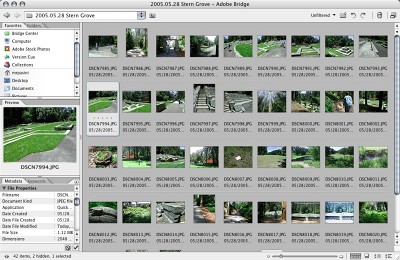 |
| The Default Workspace. The Navigation pane (top left) includes a Favorites tab and a Folders tab. Below it, the Preview pane sits on top of the Metadata pane which holds both Metadata and Keywords tabs. The large Thumbnail pane has controls just below it to resize the thumbnails or lay them out in several different schemes. |
The default view is only one of four Adobe supplies and you can save any number of your own custom workspaces, even assigning them to a keyboard shortcut. And there's quite a bit you can customize from the layout to the background color of the preview pane, as well as the size of the panes. Moreover, you can open any number of Bridge windows featuring any view or location you like.
The thumbnail display (which extends beyond images to pages for PDFs and InDesign documents, for example) can be sorted by name, kind, creation date, size, dimensions, resolution, rating and more.
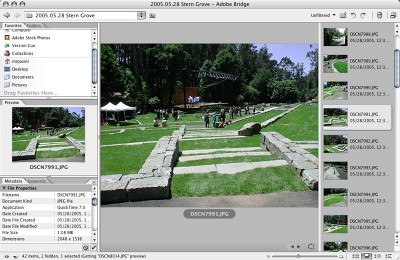 |
| A Custom Workspace We've chosen the filmstrip layout for our Thumbnail pane. |
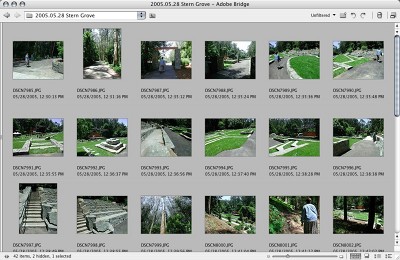 |
| The Lightbox Workspace |
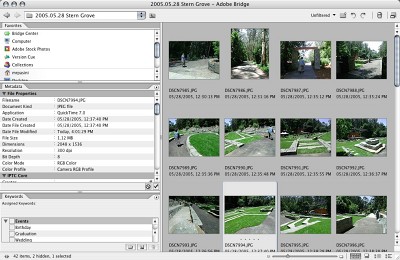 |
| The Metadata Workspace |
When you select a thumbnail, the metadata pane displays information about the file stored in the file itself. Metadata is a big thing with this release of the Creative Suite, which takes it far beyond the information collected in a JPEG header. Everything from the text associated with Bridge's color labels to edits made to DNG files in Camera Raw are stored as Extensible Metadata Platform (XMP) metadata. Adobe has looked deep into the file structures of its various document types in this release, coming up with some impressive advancements like Smart Objects (video: http://www.adobe.com/products/photoshop/pop_smart.html).
Being able to see this much information about your images in one window is certainly helpful. But Bridge lets you act on it, too.
FILE HANDLING | Back to Contents
File copying and moving is as simple as dragging images from the thumbnail pane to the location pane or from one Bridge window to another. Batch renaming can also copy or move files while renaming them and even preserving the original name in the metadata. And, of course, you can delete files.
 |
| Some Handy File Handling Tools. You can filter the display to include only certain images, create a new folder, rotate images, delete them or switch a compact display handy when working in other applications. |
You can work on individual files or selections of files, which makes rotating multiple images efficient.
Double clicking a file will open it in its respective application, even if it's not an Adobe application. But even better, you can open Raw images in Adobe's Camera Raw plug-in.
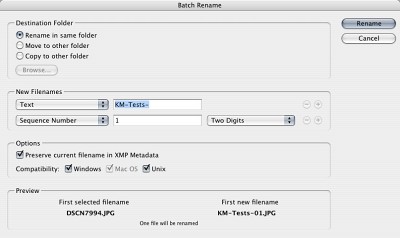 |
| Batch Renaming |
Searching for files is greatly enhanced by Bridge's ability to see the metadata. You can search multiple criteria including label, rating, keyword, descriptions, comment or even all metadata. And the results can be displayed in a new Bridge window.
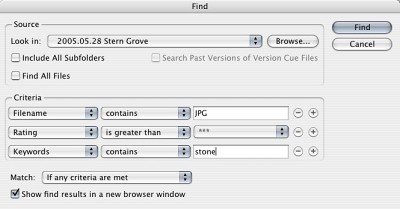 |
| The Find Dialog You can search on metadata. |
Search features even extend to Adobe's Stock Photos royalty-free image service.
And you can save that search as a Collection to repeat it later without having to reenter the criteria.
METADATA EDITING | Back to Contents
Bridge is a slick file browser but it's a metadata editor, too. And you don't have to open individual files to edit their metadata.
To add copyright information to your images, for example, you only have to select them, scroll the metadata pane to the editable Copyright field, enter your information and Apply it to your selection.
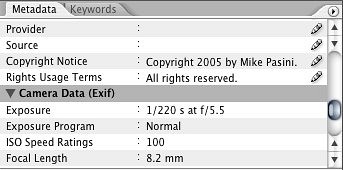 |
| Editing Metadata. The pencil icon indicates the metadata field can be edited. Select several images to edit the field in all o f them. Here we've added copyright metadata. |
Labels (five colors with text) and ratings (zero to five stars) are stored as XMP metadata, too, unless the file type prohibits that, in which case it's stored in Bridge's cache. While you can select images and assign ratings from the Label menu, Bridge also offers a full screen slide show mode which can assign labels and ratings several ways. You can also rotate images during the slide show.
COORDINATING COLOR | Back to Contents
Bridge is a standalone application but it is also integrated into the other Creative Suite applications, providing an alternative to using the Finder/Desktop for file handling.
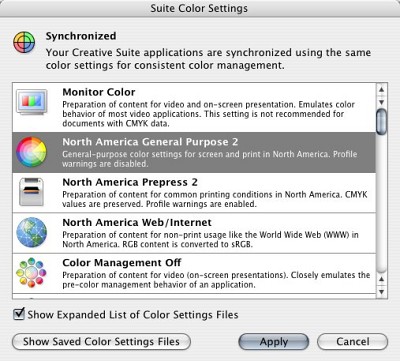 |
| Color Management Not just for Bridge, but across the Suite. |
But it goes beyond that by synchronizing color management throughout the Suite. You can select from among four standard schemes, including the default North American General Purpose 2 or from an expanded list of 25 options including Web Graphics Default, Emulate Photoshop 4, Colorsync Workflow and Off.
If you edit your Color Settings in a CS application, you'll be warned they've been synchronized by Bridge.
IMAGE EDITING | Back to Contents
Thanks to the integration of Adobe's Camera Raw plug-in, it's also possible to edit Raw images in Bridge, freeing Photoshop for more complex image editing. All of the Camera Raw edits are saved as metadata and can thus be copied or cleared, including tonal adjustments, color correction, sharpening and even cropping, to name just a few. Moreover, you can work on a selection of Raw images, seeing the effects of your editing on a range of thumbnails.
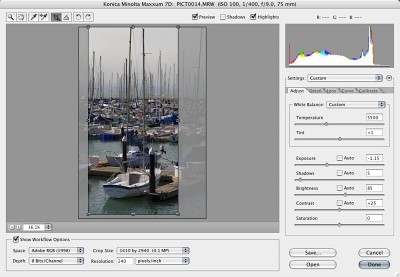 |
| Camera Raw Running independently of Photoshop |
SCRIPTS | Back to Contents
Being able to work on a selection of images is a boon, but the concept extends beyond file handling tasks. Bridge can hand off your selection to any of the other CS2 applications for processing with one of their built-in or custom scripts.
For example, Photoshop scripts accessible from Bridge include Batch, Contact Sheet II, Image Processor, Merge to HDR (32-bit high dynamic range images), PDF Presentation, Photomerge, Picture Package, Web Photo Gallery. InDesign offers Create InDesign Contact Sheet and Illustrator adds Live Trace and Export to Flash.
Bridge itself is scriptable, too, using JavaScript. And since the Suite speaks JavaScript, you can script a CS2 application to perform tricks in your Bridge script. A 244-page Bridge JavaScript Reference PDF is available on the Adobe Web site. Unfortunately, there's nothing like Photoshop's ScriptingListener plug-in (see "Cruise Control for Photoshop CS" in our May 28, 2004 issue) to help. Yet.
WORKFLOW | Back to Contents
For the photographer who shoots Raw images, Bridge is the centerpiece of a much improved workflow. Here's one scenario we've been experimenting with.
Returning to the bunker with a CompactFlash full of Raw images, we pop the card into a PCMCIA adapter and slip it into our laptop. That launches a program that copies the images from the card to a new folder on our hard disk which we name for today's date with a short text description.
This is a critical moment in the game because that copy is not verified. If there's a problem with the hard disk, it may appear the images have successfully been duplicated only to prove they haven't when you finally open them. The thumbnails may be intact, so you can't go by that.
That's one reason we process the Raw files through Adobe's free DNG Converter, which turns the proprietary 8.8-MB Raw files into 5.5-MB Adobe Digital Negative files, thanks to its lossless compression. The Converter does verify the conversion, so we know we've got all the image data we need. We also have the data in a more compact size and in a format that does not depend on the camera manufacturer's continuing support.
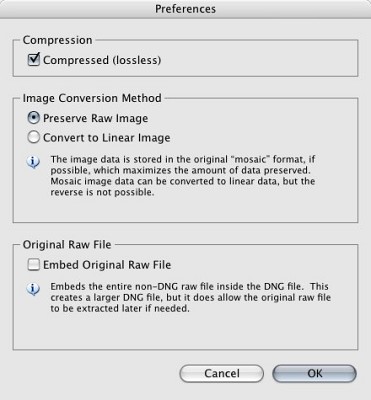 |
| DNG Converter Preferences. Options include lossless compression and embeding the entire original Raw file, which DNG Converter can also extract from a DNG file. |
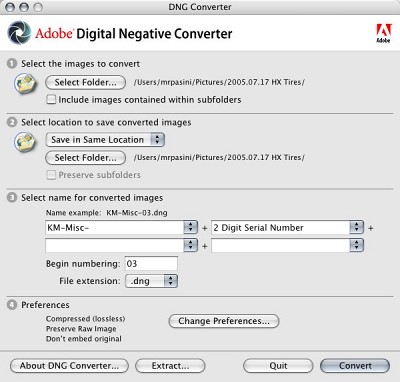 |
| DNG Converter. Converting to DNG format isn't required, but an alternative to working on the Raw files generated in your camera. Either work in Bridge. |
We then use Bridge to edit the files. We batch rename them, add our copyright (we feel a script coming on for that) and any keywords we want. Then we use the Slide Show to take a look at them, rotating them where necessary. If they're product shots, we'll rate them to mark the ones we want to use.
The Camera Raw plug-in works in both Bridge and Photoshop, but Bridge can use it on a selection of files, changing them all simultaneously. Working with greater than 8-bit channels lets us correct exposure, enhancing highlight detail or brightening up shadow detail. But it also lets us experiment with color and tonal shifts without risking banding (subtle posterization). This is particularly fun with nature shots.
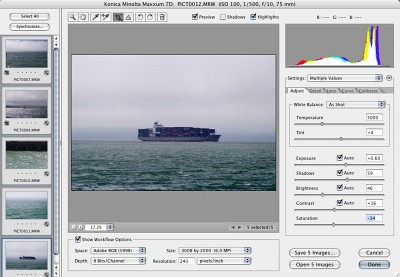 |
| Camera Raw Plug-in. On the left are the images we're editing simultaneously. Since the edits are stored in the DNG or Raw file as metadata, they can be cut and pasted or cleared from any image. |
For a group of shots taken under mixed lighting that need some color correction and perhaps tonal adjustments, we select the group and open them in Camera Raw. We pick a representative shot to work on, but we keep an eye on the group's thumbnails as we work to make sure we're not going too far with our edits.
Crops too can be saved as metadata. You can crop a selection or crop each image individually.
Since these edits are merely stored in metadata, they can be cleared if we decide we don't like them. They can also be copied if we find them appropriate for another image.
When we open the edited DNG or Raw image in Photoshop for further tweaking or printing, we save it as a JPEG for the Web or print or press. We can't overwrite the DNG or Raw image, of course.
This workflow answers a lot of needs but we're wary of a couple of things. Popping keywords into the metadata isn't really a substitute for using an organizer like iView MediaPro, which can let you see your whole collection at a glance. And while iView MediaPro can display DNG or Raw thumbnails, it doesn't render the metadata edits like Bridge does. Then there are those native Raw files to think about. Deleting them seems a bit cruel. And it sure would be nice to automate transferring images from the camera and through DNG Converter with Bridge.
CONCLUSION | Back to Contents
Bridge provides a quick and efficient workspace to handle almost all the routine file management tasks photographers have had to grabble with using several different applications. It's especially helpful working with Raw images, taking much of the heat off Photoshop because it can run the Camera Raw plug-in on multiple images. Already the cockpit for CS2, its scriptability promises even more efficiency to come.
