 Review: ImageMatics
StillMotion Creator PE (Personal Edition)
Review: ImageMatics
StillMotion Creator PE (Personal Edition)
(Windows platforms only) :-(
By Dave Etchells
Review Date: December 2002
The Digicam Dilemma
Now that you have your digital camera, what do you do next?� Take pictures, lots of pictures! But once ou've shot all those masterpieces, how do you share them with family and friends? You can always print them, but that takes time, and you've got to get the prints in the hands of the people you want to share them with. - Think envelopes, stamps, and a trip to the post office to be sure you've got the right postage. You can of course send them off one at a time (or even a few at once) in emails, but the ultimate presentation on the other end leaves something to be desired. - Most email programs do poorly when serving double duty as photo albums or slide show stand-ins. At the same time, you really need to resize the images so they'll fit the screen better on the other end, in the process shrinking the file size so the emails won't take hours of modem time to send and receive. That means more time spent on your end in a photo editor.
What to do? Digital cameras are great for quickly and cheaply snapping photos by the dozen, but it can frankly be a bit of a pain to actually do anything with them afterward. (My wife Marti refers to my digicam as "the digital black hole," a depressingly accurate reference to the way pictures go in, but never come back out.)
Slide Shows to the Rescue? - StillMotion Creator PE
I think the ultimate answer for sharing photos with far-flung friends could well be to assemble them into slide shows that can be easily emailed or dropped onto a CD. And judging from the amount of email we've received at IR on the general subject of slide show software, it appears that a lot of our readers agree.
The problem has been that there aren't a lot of good pieces of slide show software out there, with most having either limited capabilities or being cumbersome to use. Still Motion Creator from ImageMatics (see my previous review) was a superb tool for creating slide shows, but did a lot else as well, making the program more complex than it needed to be for just basic slide show creation.
ImageMatics listened to all the user requests they received for a simpler program focused solely on slide show creation, and the result is the new StillMotion Creator PE (Personal Edition) program. I confess to being a bit skeptical when ImageMatics told me that it was "three click simple" to create slide shows with StillMotion PE, but when I tried it, it proved to be absolutely that easy. I literally don't think it can get much simpler than this to make slide shows from collections of digicam images. And the best part is that not only can you output them to formats that require no special software for your friends to view them, but the resulting shows are compact enough to send via email without enduring hours of up/downloading.
I was impressed enough with StillMotion PE that I broke off from my perpetually overloaded hardware review schedule to put together a brief look at it. (That schedule was even crazier than usual, because it's the Christmas season as I write this, meaning I've got a huge backlog of digicam reviews that need to get up on the site. What I saw in StillMotion PE though, was a perfect accompaniment for that holiday present of a new digicam, as well as the perfect way for all our readers to share photos of holiday get-togethers with their families and friends.)
Who Are These Guys?
As I mentioned above, StillMotion PE is the second major product offerings from the folks at ImageMatics.� Their StillMotion Creator software (reviewed our site last May) is a cool product aimed at creative types who want to create documentary-style "virtual tours," or as their adds say �bring still images to life. While very easy to use, their first offering wasn�t for everyone: It produced professional results for a specific task and did it well. With StillMotion PE though, ImageMatics has taken all the sophistication of their full-blown product and boiled it down to the key essentials needed for creating slide shows.
ImageMatics claims that StillMotion PE is nothing less than the "missing link" in digital photography. - A bold claim, but one with at least some justification, in my opinion.
 What it Does
Slide shows, that's it.
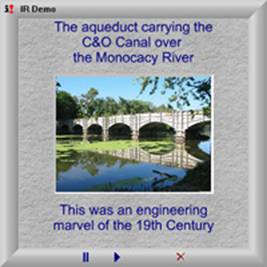
Neat slide shows with nifty transition effects, and even soundtracks, but nothing more. If you want something to retouch your images, eliminate red-eye, drive your printer, send emails, and oh yeah, sorta-kinda do slide shows, this isn't the program for you. The single-minded focus does make it dead-easy to use though: At its most basic, just point it at a folder full of photos, and it'll turn them into a default slide show (one second per slide, one second "dissolve" transitions) all by itself. The shot at right shows what the output looks like, in this case the standalone player.
Once you've assembled the photos you want, Still Motion PE gives you a range of ways to output your show, including creating �a self-playing slide show with its own built-in player, a self-installing screen saver, a web page, or an SWF file (for people who want to take the Flash-based elements and integrate them into their own web pages. By the time you read this, I'm told it'll also provide the pieces you need to create an auto-play CD ROM�.all without having to know about file formats, Flash programming, or arcane web stuff.
Once it's made the basic, no-frills show, StillMotion PE lets you add any of a range of transition effects likes fade, spins and wipes (over 20 variations to choose from), create a title page, annotate the slides, insert text-only pages and add your favorite music from Wav or MP3 files.�
Additional niceties included a panning feature to display panoramic shots and a cropping tool that lets you use just a specific area of an image.�
One interesting thing I noticed was that text isn�t �burned in� to the image. It is handled in a separate �layer� so that you can have panning images under stationary captions.
You can also specify flat or textured backgrounds and mats, or add your own custom backgrounds if the urge strikes you. You can even tell it to bevel the mat if you'd like.
Step by Step
So how easy is it?� Let me tell you how I made my first show.
I collected a few images from our last vacation trip into a folder. So far so good.
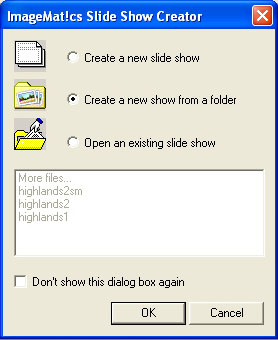
I launched StillMotion PE and was immediately presented with the startup screen at right.� No chance for confusion here, I wanted to create a new show from a folder, so I checked that item and hit "OK."�
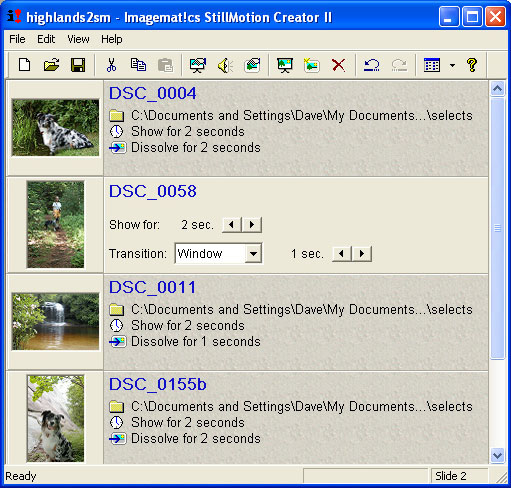
In just a few seconds, all the images in the folder appeared as thumbnails in what ImageMatics calls� a �slide show view," as shown at right.
Now what?� I clicked on the Preview button at the top, (it looks like a movie screen so even I could figure it out) and in a few seconds my slide was playing in its own VCR-style viewer.
I think I clicked the mouse a total of about three times and I was looking at slide show of all my pictures with dissolves between each slide.�
Voila, my first slide show! - Simple, quick.
Showing Off
OK, now that I've actually got a slide show, what do I do to share it with the world? The File Menu seemed like an obvious next step, and there I found the Publish option.
The Publish Menu gave me the following choices:
- SWF File
- Web Page
- Screen Saver
- Self Playing Show
- (coming soon: Auto-Playing CD)
What to do?
The obvious choice for email is Self-Playing Show (although sadly, only for friends with Windows machines), so that's what I chose. I got the usual file-save dialog box asking me what I wanted to call the show and where to put it. I filled in the appropriate blanks and hit "save." The program spent a moment or two murmuring to itself, saved the file, and then asked me if I'd like to play my new show. I clicked OK, and up came my slideshow running inside a cool-looking player.
The resulting self-playing slide show file wasn't exactly tiny (about 300K bytes), but wasn't nearly as large as all the individual photo files that went into it. - And I didn't have to mess around resizing all the files myself, to help them fit into an email.
I�m Hooked�
In literally a couple of minutes, I had gone from a collection of digicam files to a slick little slide show, on its way to my friends in an email. Pretty impressive, I wonder what else PC can do?
Lets Get Fancy
While StillMotion PE's default shows look fine as they are, there's a LOT of things you can do to enhance and tweak them.
To adjust the settings for any individual image in the show, you just double-click on its thumbnail in the Slide Show View.
This brings up a tabbed control window, with headings for Show, Transitions,
Label and Edit.� This makes sense, as these are all the things
you might want to do to individual 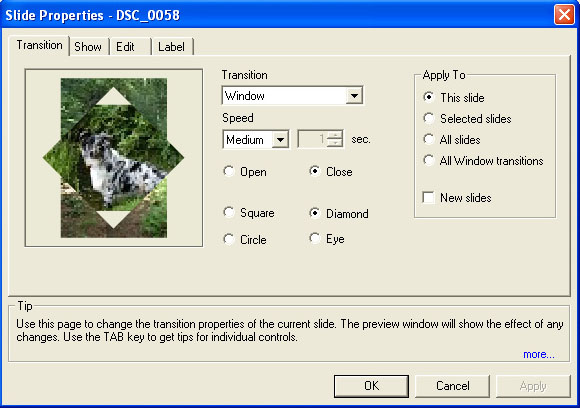 slides.
Show handles basic things such as how long a slide stays on the screen,
but also has a checkbox to enable panning.
slides.
Show handles basic things such as how long a slide stays on the screen,
but also has a checkbox to enable panning.
Clicking on Transitions takes you to the fun stuff: It displays a panel showing a miniature animation of the current slide dissolving into the next one. You can choose all manner of fancy transitions, including spins, pushes, wipes, zooms and more.� Clicking on each effect immediately shows you what the transition to the next slide would look like with that effect applied, and presents controls appropriate to the effect chosen. (For example, the number of rotations to use on a spin transition.)� The Transitions panel also lets you control how fast the transitions will be for each slide.
A handy feature of the user interface is that you can tell the program to apply whatever settings changes you're making to just the slide you're looking at, to selected slides, or to all slides in the show. - This is useful for quickly changing the defaults for your show, such as changing all the transitions, or adjusting how long all the slides appear on the screen. (One thing that was a little counterintuitive though, is that I couldn't seem to do the "apply to selected slides" option if I'd opened a particular slide by double-clicking on it. To get this option to work, you need to control-click to select multiple sides in the Slide Show View, and then right-click on one of them to call up the Properties dialog.)
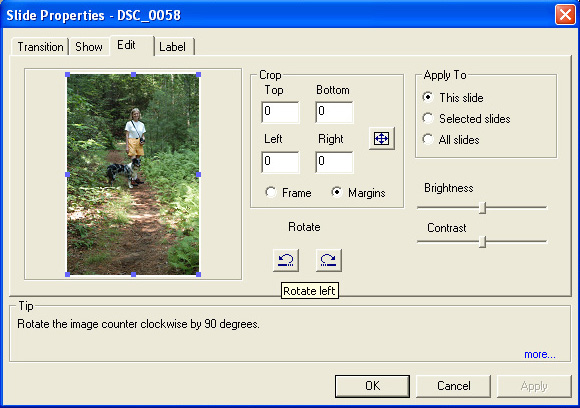 The Edit panel lets you do some basic but essential operations
to the images.� Most handy was the rotate selection, which lets you rotate images
in 90 degree increments, so "portrait" (vertical) format image will
be shown correctly.
The Edit panel lets you do some basic but essential operations
to the images.� Most handy was the rotate selection, which lets you rotate images
in 90 degree increments, so "portrait" (vertical) format image will
be shown correctly.
Brightness and contrast controls provide image tuning and a very straightforward crop tool lets you select a portion of the image to fill the entire slide�essentially providing a zoom function.
Tell Your Story
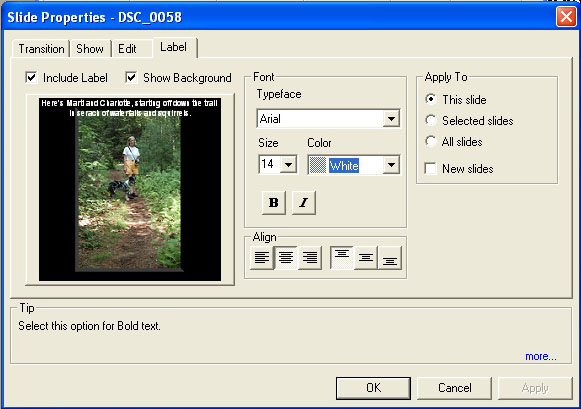 My favorite is the Label tab. It lets you add captions and
text descriptions to any slide.� It's by no means a full-powered word processor,
but it has about all the flexibility you need for a typical slide show. You
can place text anywhere on the slide, whether in the margins or on the image
itself, in any color, font or size.
My favorite is the Label tab. It lets you add captions and
text descriptions to any slide.� It's by no means a full-powered word processor,
but it has about all the flexibility you need for a typical slide show. You
can place text anywhere on the slide, whether in the margins or on the image
itself, in any color, font or size.
An �Insert Blank Slide� feature lets you add blank slides for creating text-only pages in the show. This struck me as a thoughtful addition, one that I haven't seen in many slide show programs.
Finishing Touches
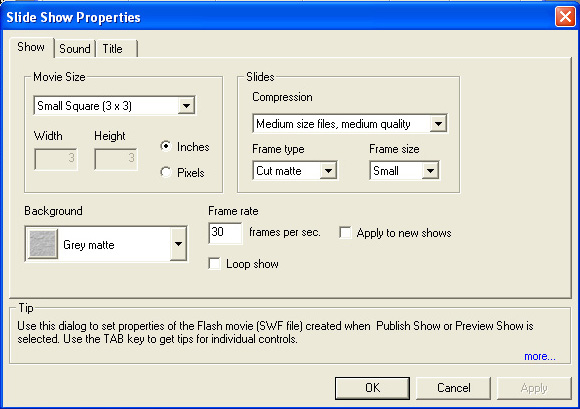 So
far everything we've done affected individual slides, but the Show Properties
option gives you control over things that affect the entire show. These include
adding a title page, adding sound, framing and matting options, controls for
the outputs size of the slide show, and the image and sound quality, which drastically
effect file size. (File size isn't an issue at all for shows that will run from
a hard drive or CD, but can be very important if you're going to share your
show via a web page or email.)
So
far everything we've done affected individual slides, but the Show Properties
option gives you control over things that affect the entire show. These include
adding a title page, adding sound, framing and matting options, controls for
the outputs size of the slide show, and the image and sound quality, which drastically
effect file size. (File size isn't an issue at all for shows that will run from
a hard drive or CD, but can be very important if you're going to share your
show via a web page or email.)
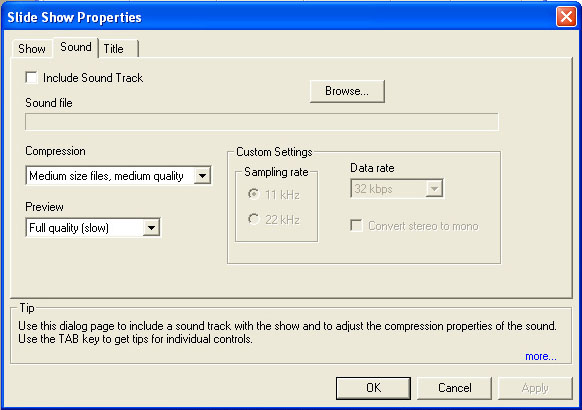 The Sound tab lets you create slide shows with �CD Quality�
sound if desired.� Imagematics paid a lot of attention to sound management,
which is important given that the sound track can take up more storage and bandwidth
than the images themselves.
The Sound tab lets you create slide shows with �CD Quality�
sound if desired.� Imagematics paid a lot of attention to sound management,
which is important given that the sound track can take up more storage and bandwidth
than the images themselves.
My new show was pretty much finished, but there were still other options available if I'd had the files to utilize them. In particular, a Panorama feature can automatically pan back and forth across a wide "panoramic" image that you've stitched together from multiple image files. The "bounce" option pans back and forth across the image at a speed that you set.
You can see my "final" show running at right. Pretty slick, isn't it? I could have done quite a bit more if I'd wanted, spending more time with the captioning tool, tweaking the transitions, playing with background colors, etc. - I do have to caution you that, while the basics of StillMotion PE are dead-easy, it's an addictive program to play with. You can easily spend many minutes adding little tweaks to a show you're building.
Other Niceties
I'd like to say that I got through the whole thing without getting stuck, but have to admit that one element of StillMotion PE's user interface stumped me. - At one point, I'd been playing around with a show and wanted to start over again "for real." I clicked new, the old show disappeared, but no dialog box appeared to let me create a new one. Huh? - It turns out that "new" just zaps your previous show and clears the slate so you can start a new one. To actually start building your new show, you need to go to the Edit menu, and select "Add Folder." Definitely not intuitive in my book, but after I shared my confusion with ImageMatics, they indicated that they'd change the program to automatically bring up the same startup screen used at program launch whenever you select "New."
Apart from my one conundrum with "New," things went very smoothly. "Tags" appear whenever you hover the cursor over a button, explaining what the button is for. Likewise, clicking on most fields and buttons in the various configuration and editing control windows brings up friendly tips in a panel at the bottom of the window. Clicking on Help provides a conventional (better than most)set of help files but it also provides direct access to online help and tech support, if you're connected to the Internet while you're using StillMotion PE.� There's also a Check for Updates that tell you if a new version is available and lets you upgrade in place.
And did I Mention
PE comes with a stand-alone SWF viewer for viewing its own or any other Flash files, a handy utility to have, even apart from PE. It also lets you create a screen saver that installs itself (so you can mail it) of any slide show you create. You can make an auto-play CD ROM just by copying the files the program creates to the root of a CD ROM with your favorite CD copying program.
Opportunities for Improvement
Of course, nothing's perfect, and Still Motion PE is no exception. I already mentioned one complaint I had, namely the handling of the "New" function in he file menu. A minor point, but on a looping show in a web page, I'd like some easy way to vary the length of time it spends on the blank frame at the end. (Although, it occurs to me that I could manage this just by inserting a black frame at the end explicitly.) The text overlay capability is nice, but I'd like greater control over the typography. (For instance, the ability to have multiple fonts appearing on the page, or to be able to place more than one block of text independently of each other.
I'd also like to be able to adjust the size of images in the final show, rather than having them always expand to fit the available space. - I several times wished I could shrink an image to allow more room for expanded text on a particular slide. Oh - and of course, I'd *really* like to be able to run StillMotion PE on my Macs, as that's my primary computing platform.
Final Impressions � The Great Equalizer?
Here's an interesting thought: A lot of the drive to multiple megapixels in digicams has arisen from the needs of printed output. - It takes a lot of pixels to avoid obvious-looking jaggies and artifacts in your prints. By contrast, computer displays let you get by with an almost laughably small number of pixels. - 640x480 (that's about 0.3 megapixels) makes a nice-looking picture, and 1024x768 a fantastic one.
Because it makes it easier to enjoy your photos on-screen, rather than in print, a program like StillMotion PE removes a lot of the need for multi-megapixels in your digital photos. Think of it as the "great equalizer," able to make even sub-megapixel digicam images entirely usable. Any digital camera can generate images of sufficient quality to generate compelling slideshows with StillMotion PE.
Bottom line, StillMotion PE is very fast and easy to use and let me create a slide show I could share (and be proud of) without a lot of hassle and help. It's earned a permanent place on my hard drive, which really says something given the state of my hard drives these days.� Try it you�ll like it!
(Special deal for IR readers! - $49.95, program not available to the general public yet, as of this writing.)
